



How to Protect Your Online Accounts Without Being a Tech Head
Hi, I’m Barry, a solo web developer based in Bulimba, Brisbane. Every week I help local businesses and individuals keep their online presence safe. The good news is you don’t need to be a technology expert to protect your accounts effectively. Simple, consistent habits make a real difference.
This guide follows current advice from the Australian Cyber Security Centre and other official Australian sources. It focuses on everyday account security that anyone can put into practice straight away.
Table of Contents
- Protect your email first — it’s where password resets go
- Use passkeys where available
- Use a password manager and unique passwords
- Turn on two-factor authentication
- Use email aliases for sign-ups
- Check whether your details appear in known data breaches
- Spot suspicious texts, emails and login requests
- Secure your business accounts too
- What to do if an account is compromised
- If you’re using AI, set limits and do not give it full access
- A short checklist to get started today
Protect your email first — it’s where password resets go
Your email account is the master key to almost every other online service. If someone gains access to your email, they can usually reset passwords for your banking, social media, shopping and government accounts.
The Australian Cyber Security Centre recommends treating your email as the foundation of your online security. Start by making sure your email password is strong and unique. Enable all available security features for your email provider, including two-factor authentication.
Take a moment today to review the recovery options attached to your main email address. Make sure the phone number and backup email are current and under your control. This small step can prevent many common account takeover attempts.
Use passkeys where available
Passkeys are a modern and more secure replacement for traditional passwords. They use the biometric features or PIN already on your phone or computer instead of typing a password.
According to the Australian Cyber Security Centre’s guidance on passkeys, they are resistant to phishing and much harder for attackers to steal. Many popular services including Google, Apple, Microsoft and some Australian banks now support them.
When you see the option to create a passkey, take it. Your device will handle the authentication securely. You can still fall back to a password if needed, but using passkeys where available reduces your risk without adding complexity.
Use a password manager and unique passwords
Using the same password across multiple sites is one of the easiest ways to lose control of several accounts at once. A password manager solves this by generating and storing unique, strong passwords for every service.
Choose a reputable password manager that works across your phone, tablet and computer. Many good options now offer free plans suitable for individuals.
Once you start using a password manager, create a new, unique password for every account. The manager will remember them so you don’t have to.
Protect the manager with a strong passphrase
Your password manager itself needs strong protection. The Australian Cyber Security Centre’s page on creating strong passphrases recommends using a memorable sentence or combination of words that is at least four random words long.
For example, something like “correct horse battery staple” (never use this exact phrase) is far stronger than a short password with numbers and symbols. Make it something only you would think of, and never write it down in an easily accessible place.
Turn on two-factor authentication
Two-factor authentication (2FA) adds a second check before anyone can log into your account. Even if a password is guessed or stolen, the attacker usually cannot complete the second step.
The Australian Cyber Security Centre lists enabling 2FA as one of the easiest and most effective steps you can take. Most major services now offer it.
Where possible, choose app-based 2FA or passkeys over SMS. However, SMS is still much better than using only a password.
Keep recovery codes somewhere safe
When you turn on two-factor authentication, the service will usually give you a set of recovery codes. These let you regain access if you lose your phone or authenticator app.
Store these codes in a safe place separate from your phone — for example, in an encrypted note inside your password manager or printed and kept in a locked drawer. Do not store them in the same place as your password manager backup.
Use email aliases for sign-ups
Every time you give your real email address to a new website, you increase the chance that your address will appear in a data breach or be sold to spammers.
Email aliases let you create variations or completely different addresses that forward to your main inbox. This protects your primary email address.
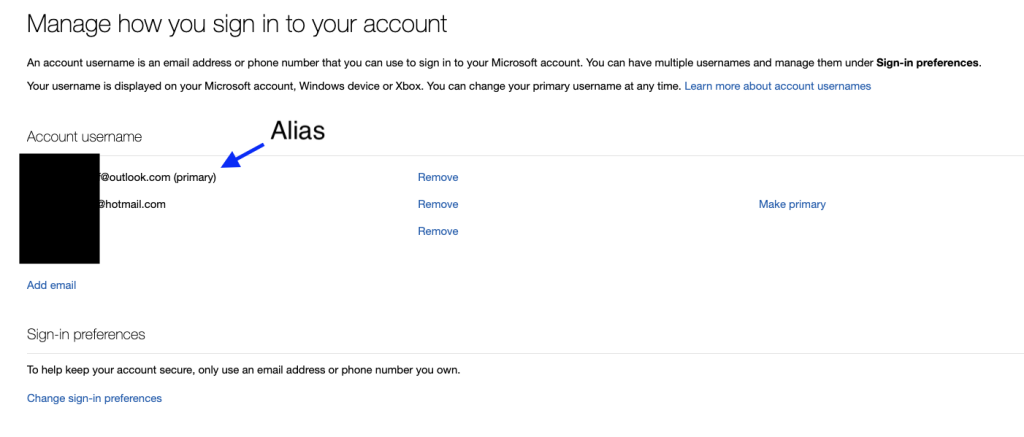
The difference between Gmail plus-addressing and genuinely hidden addresses
Gmail plus-addressing is simple. If your address is name@gmail.com, you can sign up as name+netflix@gmail.com. All mail still arrives in your normal inbox. Google’s official help page confirms this works for most Gmail accounts.
However, many websites detect and reject plus-addresses. More importantly, your real email address is still visible.
Genuinely hidden aliases create a completely different email address (such as shopping123@simplelogin.co) that forwards to you. The original site never sees your real address.
Two popular and well-regarded services in Australia are Apple’s Hide My Email (included with iCloud+) and SimpleLogin. Apple’s support documentation explains that Hide My Email creates random addresses that forward to your Apple account while keeping your real email private.
Using aliases is an easy habit that limits how much of your information is scattered across the internet.
Check whether your details appear in known data breaches
Several free services let you check whether your email address or phone number has appeared in publicly known data breaches.
Have I Been Pwned is the most widely used. Enter your email address to see which services have been breached. If your details appear, change the password for those accounts immediately and consider changing it on any other sites where you used the same password.
A clean result is reassuring but does not guarantee safety. Many breaches are never publicly disclosed, and data can be stolen without triggering an alert. Regular checks combined with the other habits in this article provide better protection.
Spot suspicious texts, emails and login requests
Most account compromises start with a phishing attempt. Scammers send messages that look official and try to trick you into giving up codes or clicking harmful links.
Scamwatch’s page on text or SMS scams notes that scammers often create fake sender names and use urgency to pressure you. The new SMS Sender ID Register, which the Australian Communications and Media Authority says goes live on 1 July 2026, is designed to make it harder for scammers to impersonate trusted organisations.
ACMA’s guidance on getting text messages from businesses and organisations reminds Australians to be cautious of unexpected messages asking for personal information or verification codes.
Good rules to follow:
- Never share a verification code with anyone, even if they claim to be from your bank or a government agency.
- Do not approve unexpected login prompts on your phone.
- Instead of clicking links in messages, open your browser or app directly and log in normally.
Taking these few seconds to verify can prevent most phishing attempts.
Secure your business accounts too
If you run a small business, your website, domain name, business email and Google Business Profile all need the same level of care.
The Australian Cyber Security Centre’s Small business cyber security guide recommends using individual logins for each staff member rather than shared accounts. Give people only the access they need to do their job.
Protect your domain registrar account carefully — it controls your website address. Use a strong password and two-factor authentication there. Keep business email separate from personal email where possible.
Regular backups are essential. The ACSC’s guide on how to back up your files and devices explains simple methods suitable for small businesses, including the 3-2-1 rule: three copies, two different types of media, one copy offsite or in the cloud.
What to do if an account is compromised
Stay calm. Most situations can be recovered if you act quickly.
First, change the password for the affected account immediately. Next, change the password for your email account if it might also be at risk. Then go through your other important accounts and update passwords where you have reused the same one.
Revoke any suspicious app permissions or connected devices. Contact the service’s support team if you cannot regain control. If money has been lost, contact your bank straight away.
Finally, turn on or strengthen two-factor authentication on every account that offers it. This single step makes future compromises much harder.
If you’re using AI, set limits and do not give it full access
Many people now use AI tools to help with writing, research or managing accounts. Be cautious about granting these tools full access to your email, password manager or other sensitive accounts.
Give AI the minimum permissions needed for the task. Review connected apps regularly and remove any you no longer use. Treat AI assistants like any other third-party tool — useful, but not something that should have unlimited control over your digital life.
A short checklist to get started today
- Strengthen and secure your main email account
- Create or improve your password manager setup with a strong passphrase
- Turn on two-factor authentication on email, banking and social media
- Start using passkeys where they are offered
- Begin using email aliases for new sign-ups
- Check your email on Have I Been Pwned
- Save your 2FA recovery codes safely
- Review business account security (domain, website, Google Business Profile)
- Set sensible limits on any AI tools you use
These steps are straightforward and do not require technical expertise. Completing even a few of them significantly improves your everyday online safety.
I hope this guide gives you clear, practical steps you can use right away. In a future article I will explore how to use AI tools safely without exposing your personal or business information.
Stay safe online.
Sources
ACSC password guidance: https://www.cyber.gov.au/publication/personal-cyber-security-handbook/use-unique-and-strong-passwords-where-the-use-of-passkeys-is-unavailable
ACSC passkeys: https://www.cyber.gov.au/protect-yourself/secure-your-accounts/passkeys
NIST authentication guidance (passwords and phishing resistance): https://pages.nist.gov/800-63-4/sp800-63b.html
FIDO passkeys and biometric privacy: https://fidoalliance.org/passkeys/
ACMA SMS guidance: https://www.acma.gov.au/getting-text-messages-businesses-and-organisations
Have I Been Pwned FAQ: https://haveibeenpwned.com/FAQs
Google compromised-account recovery: https://support.google.com/accounts/answer/6294825
Microsoft Support Add or remove an email alias in Outlook.com: https://support.microsoft.com/en-us/office/add-or-remove-an-email-alias-in-outlook-com-459b1989-356d-40fa-a689-8f285b13f1f2